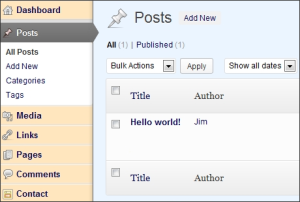
 For everything you’ve ever wanted to do in WordPress, there’s usually a good plugin to solve the problem. But not always. Try as we did, we could never find a good plugin that would allow a user to customize the look and feel of a WordPress Dashboard.
We build a lot of client sites here at Boomient, and since we are always promoting the benefits of good branding, we thought it made a lot of sense to offer a custom admin style that lets clients have their own logo, their own colors, etc on the WordPress back end.
The problem with most customization methods is that the CSS files that govern the look and feel of the WP Admin area are found in the /wp-admin folder. So you can update the CSS there (if you can find the elements), but then the next time you update WordPress you’ll lose everything you did, as this folder gets replaced.
Custom Plugin Solution
We created a quick plugin that offers a way to override the WP CSS and set your own colors for a number of key areas of the WP back end experience, and also shows you how to put your client’s logo on the WordPress login screen.
How to Customize WordPress Admin Look and Feel
First, go into your WP Dashboard and go to Users >> Your Profile and make sure the “Grey” color scheme is selected (Save it). This plugin is set to adjust the CSS for that setting.
Here’s the Steps:
- Download the plugin by clicking here (zipfile)
- Install in your WP site and activate
- Go to Dashboard >> Plugins >> Editor and choose “Customize WP Admin Dashboard” from the dropdown menu. This will show you the files that are associated with this plugin, of which there are only two: One php file and one CSS file.
- Click on the CSS filename and you’ll see its contents in the Editing screen. The top part looks like this:
/*THIS CSS CUSTOMIZES THE WP ADMIN DASHBAORD AND EDITING SPACE*/

/*SOME COLOR IDEAS, light to dark :
Blues:  EBF5FF  99CCFF  0033CC  080859
Reds:   FFE6E6  FF7373  FF0000  maroon 530000
Purple: D9BFF2  9C59DE  6600CC  380070
Brown:  E8E0D9  AB8F73  663300  331A00
Orange: FFE6BF  FFBD59  FF9900  CC3300
Green:  F2FFCC  8FE38F  33CC33  003300
Gold:   FFFFD9  FFEB00  FFC700  FF9900*/
We’ve offered some suggested colors which you can use in the CSS document to change some of the elements. All you have to do is go through the elements listed on the CSS doc and change the colors where appropriate. For example, there’s an element that controls the background of the left Vertical dashboard menu in WordPress. The CSS for that particular element looks like this:
/*LEFT WP DASHBOARD VERTICAL MENU BACKGROUND*/#adminmenuback,#adminmenuwrap{background-color:#FFE6BF;border-color:#666666;}
Just fill in the hex color code that you want… all the elements are noted in the document.
You don’t have to do the editing from the Dashboard. You could also download the CSS sheet yourself and make changes that way, but I prefer to do it right there in the WP editor, because that way you can see the changes happen as you’re working.
Note, there is another step you’ll have to do to get the client Logo to show on the WP login screen. The CSS upgrades the size of this logo to a max of 323x111px, but to actually get it to show in place of the default WordPress logo, you’ll have to upload a logo file to your main theme images folder, and add some code to your functions.php file (or custom-functions.php if you have one). Here’s that instruction:
Replacing the WordPress Logo on the Client Login Screen
To get custom wp login logo, upload a 323×111 logo file named custom-login-logo.png to theme images folder, and add code to your functions.php file as follows, with path corrected:
// custom admin login logo

function custom_login_logo() {

echo '<style type="text/css">

h1 a { background-image: url(./wp-content/themes/THEMEFOLDER/IMAGEFOLDER/custom-login-logo.png) !important; }

</style>';}

add_action('login_head', 'custom_login_logo');

//end custom admin login logo
It’s reasonably simple as long as you know how to edit a php document… just stick the above code at the end of your functions.php file, edit it to name the path of the logo you uploaded, and you should see the logo replace the WordPress logo on the admin login screen.
Download the Customize WP Admin Dashboard Plugin

Having trouble? Contact me at jim@boomient.com and I’ll help.
OK
JM